

Anthropic has been developing tools for developers these past few years. But they’re training one up now for everyone else. Claude Cowork is Anthropic’s solution to the question of what would happen if an AI agent could help you with actual work — files, folders, spreadsheets, research, reports — as easily as Claude Code helps with software projects. Here’s everything you need to know about Claude Cowork, how it works (on Windows and macOS), how much it costs, and how it differs from Claude Code.
What Is Claude Cowork

Claude Cowork is Anthropic’s agentic AI tool designed for general-knowledge work, not programming. Rather than chat-style interaction—asking questions and receiving answers—you can assign Claude a task—“organize my Downloads folder”, “turn these receipts into an expense report”, “build a slide deck from these meeting notes”—and Claude will strategize the steps needed to complete it, execute those steps, and return you a completed product for review.
Cowork is powered by the same agentic architecture that drives Claude Code, Anthropic’s coding assistant. But Cowork is designed to require no terminal, no scripting experience, and no technical expertise whatsoever. While a normal Claude conversation can tell you how to do something, Cowork can actually read your files, edit files, and write new files in folders you give it permission to access; run code and shell commands in a sandboxed environment; collaborate with multiple sub-agents to manage parallel workstreams; and format its output into presentable finished products like Word documents, Excel spreadsheets with functional formulas, and PowerPoint presentations.
Cowork sessions take place on Anthropic’s servers. This means your work will still be there after you close your laptop, and you can continue working later from another computer.
Claude Cowork and Anthropic: Where It Fits in the Product Lineup
Cowork is currently offered alongside Anthropic’s other Claude products: Claude.ai chat, Claude Code, Claude in Chrome, Claude for Excel, and Claude for PowerPoint. Anthropic characterizes Cowork as bringing Claude Code’s agentic ability to do things to knowledge work outside of coding, and Cowork can indeed leverage those other tools: you can instruct Cowork to “drive Claude in Chrome” to complete browser-based tasks and pass spreadsheets or presentation decks to Claude for Excel and PowerPoint to refine at will.
Cowork originally launched as a research preview exclusively for macOS, later came to Windows with full feature parity, and is now rolling out to both web and mobile as well. Chat and Cowork share the same home inside the Claude interface — they’re simply accessed by switching between “Chat” and “Cowork” in the message box.
Claude Cowork for Windows
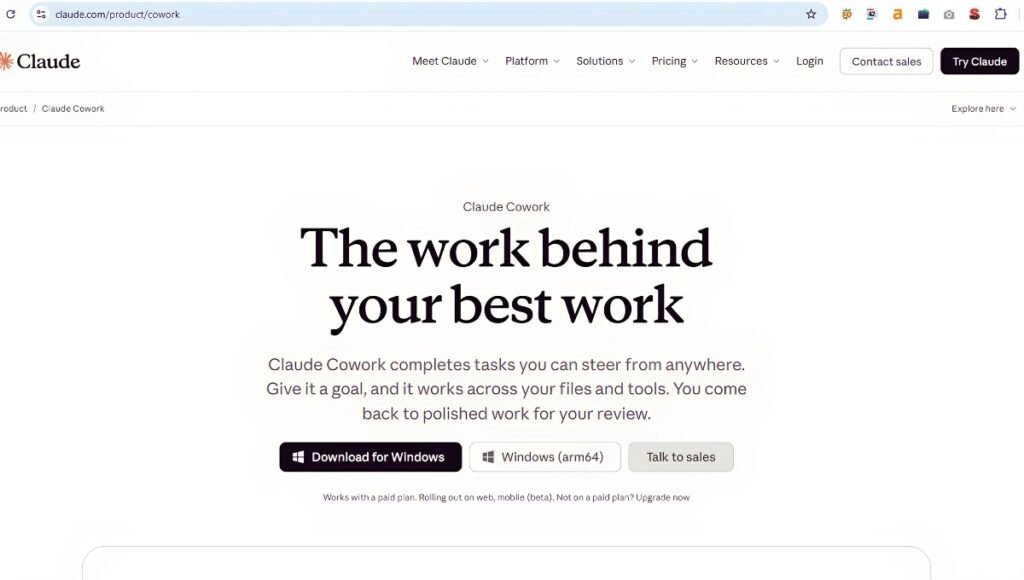
Claude Cowork for Windows includes all the features of the macOS release: access to local files, performing multi-step tasks, plugins, and MCP connectors. There’s no separate Cowork download—because it runs within the Claude Desktop app, after you install Claude for Windows and update to the latest version, Cowork will be accessible right from your existing message box alongside your chats.
Here are a few things to note if you’re a Windows user:
- You should have the latest version of Claude Desktop for Windows open and connected whenever you have a task that requires accessing local files or your browser, or needs any other action performed on your device.
- Cowork performs its tasks inside a sandboxed environment. If your Cowork setup ever hangs, one possible explanation is that virtualization support is turned off on your device. Always check this if you’re experiencing issues, but make sure to review the current system requirements at claude.com/download before assuming Cowork requires a certain edition of Windows—that list may change as Anthropic rolls out updates.
- Global instructions and folder-level instructions let you provide Cowork with standing preferences (like tone, formatting, and role context) that apply to every session or instructions specific to a local folder.
Claude Cowork Download
Here’s how to use it:
- Head to claude.com/download, and download the installer for your operating system (macOS or Windows).
- Install it, then open the Claude Desktop app.
- Sign in using your Anthropic account on a paid plan.
- When you see the message box, select “Cowork” rather than “Chat.”
- Tell Claude what you’d like done.
Cowork is available in your browser at claude.ai and in the latest version of Claude mobile apps for iOS and Android. However, accessing local files, browsing the web, and controlling your computer will still require you to have the Claude Desktop app open and connected.
Claude Cowork Pricing
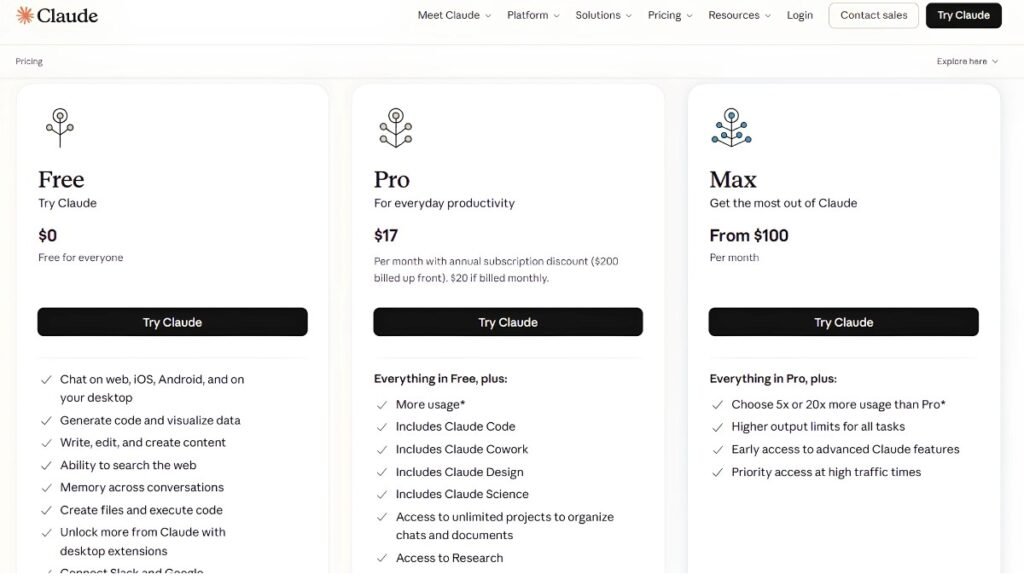
Claude Cowork is not sold separately as its own standalone product with a separate price. Instead, it’s included as part of Anthropic’s paid subscription plans. Prices as of mid 2026 are as follows:
- Pro: $17/month when billed annually, ($20/month when billed monthly). Includes Cowork, Claude Code, Claude Design and Claude Science.
- Max: Starting at $100/month, Provides 5x more usage per session than Pro. Includes all Pro features, as well as higher limits and priority access.
- Team: Standard seats are $20/seat/month when billed annually. ($25/seat/mo when billed monthly); Premium seats are $100/seat/mo when billed annually. ($125/seat/mo when billed monthly) for 20x more usage than pro. All seats include access to Cowork.
- Enterprise: $20/seat/month plus usage at API pricing. Advanced security and admin features are added on top of Team.
Claude Cowork is not available in a standalone free plan either. There is no separate free tier of Cowork. It is not included in the feature set of the Free plan. (Plan names, prices, and included features are at Anthropic’s discretion and are subject to change, so check claude.com/pricing beforehand.)
Usage Limits
It’s important to note that once you’re on a paid plan, usage is charged based on your use, not your access. Cowork conversations require more usage than a standard chat conversation since Cowork tasks are compute-intensive: planning, running your code, orchestrating sub-agents, etc. So Cowork will count against your plan’s usage allotment more quickly. If you find yourself frequently running into usage limits, you may want to batch your work into one session, only use Cowork for work that is truly multi-step, use standard chat for anything straightforward that doesn’t require file access or longer running times, or enable usage credits (available on paid plans) to continue working at normal API rates after reaching a limit. You can view your current usage anytime at Settings > Usage.
How to Use Claude Cowork
After setup, working with Cowork is simple: describe the result you want, have Claude plan and execute, then review and approve.
- Begin your work. Launch Claude from any interface, desktop, web, or mobile, then choose “Cowork,” then type out your objective in conversational language. No need to list step-by-step instructions.
- Review Claude’s plan. Claude will assess the request and explain how it will proceed before beginning. Claude will chunk larger work into subtasks as needed.
- Select a permission mode. Cowork has three permission modes you can select: Manual (Claude will ask before taking each action), Auto (Claude will go but screen its own actions for security), or Skip (Claude will act with no interstitial pauses — not recommended except for tasks you know will be safe). You can adjust how often Claude will ask before using connectors or performing other sensitive operations.
- Watch it work, or guide it along. You have the option to review progress as it happens, take control to provide further guidance, or step away and come back later to review (even from another device).
- Review Claude’s work. Claude returns completed files — worksheets, documents, presentations, reports — to your session for you to review and download.
To automate repeat tasks, simply type /schedule within any task.Schedule on-demand tasks as recurring background jobs that run automatically offline on your set cadence. Typical examples: Clean up a Downloads folder by filetype and date, convert a folder of receipt images into an expense report, summarize your research from articles/note snippets into one cohesive overview, create Excel spreadsheets with functional formulas instead of CSV dumps.
Claude Cowork vs Claude Code
Claude Code and Claude Cowork use the same agentic engine underneath, but they’re intended for different audiences and use cases.
- Claude Code is specialized for software engineering tasks: writing, debugging, testing, and deploying code. Claude Code is intended to be used either from a terminal or IDE, or through the Claude Code desktop experience. Claude Code assumes knowledge of development workflows, repositories, git, and CLI tools.
- Claude Cowork brings that same multi-step autonomous task execution to more general knowledge work. The kind of tasks you might do that have nothing to do with writing software. Instead of operating on a codebase, you point Cowork at a folder of files. Instead of pull requests, you’ll get formatted documents, spreadsheets, and slide decks. You don’t need to know how to use a terminal or write code.
The short version: Is your deliverable code? Use Claude Code. Is your deliverable a report, a spreadsheet, a cleaned-up folder, or a summary of information? Then Cowork is likely a better choice. Since they share the same architecture, some Cowork outputs (spreadsheets and decks, for example) can be passed along to Claude for Excel and Claude for PowerPoint for additional editing.
Final Thoughts
Claude Cowork is Anthropic’s attempt to bring agentic AI capabilities out from the developer terminal and into everyday office workflows, from reorganizing files and drafting reports to building spreadsheets and running research syntheses – ideally without developers having to hold their hand every step of the way. Now supported on macOS and Windows as well as the web and mobile, and included in existing paid plans rather than offered as a standalone purchase, Cowork positions itself as a general-purpose “coworker” rather than purposelessly sticking a codename on an existing code-writing tool. It’s Claude Code’s counterpart for teams looking to branch into the work that happens beyond the codebase.
Frequently Asked Questions
A1. No, Cowork is not available on Claude’s Free plan. You must be subscribed to a paid plan (Pro, Max, Team, or Enterprise) to use it. Using Cowork does not incur additional costs beyond your existing subscription.
A2. Yes, Cowork will be available through Claude Desktop app for Windows with full functionality that you find in Claude Desktop for macOS: access to your local files, Plugins, MCP connectors, etc. You must have the latest version of Claude Desktop installed and open while running tasks that access local files or your browser.
A3. No. Claude Code has the same agentic architecture as Cowork but is designed specifically for writing and deploying software. Cowork leverages that same multi-step, agentically-executed capability for non-code tasks like working with documents, spreadsheets, research, and file management.
A4. Yes! Cowork will be available on Claude’s mobile apps for iOS and Android. This will allow you to check in on and direct sessions started on other devices. Tasks that require access to your computer will still require having Claude Desktop open on that computer (to access local files, browse the internet, etc).
A5. Cowork only reads and writes files in folders you explicitly grant access to, and it requires your explicit permission before permanently deleting anything. You also choose how much oversight you want via Manual, Auto, or Skip permission modes — Manual gives you the most control for sensitive work.
Also Read: Realme C11 Price: Features, Specifications, Camera, Battery and Full Detailed Review